Ideas & Organisation · DiagramSnap

Diagrams and slide decks, built privately on your Mac.

Import ideas, create clean diagrams, turn them into branded slide decks, present from the app, and export PDFs. Your work is stored on your Mac, and AI features send only what they need straight to your provider.

$29 USD · One-time purchase · Future updates included

14-day money-back guarantee · macOS, Intel and Apple Silicon · AI features need your own Claude or OpenAI API key
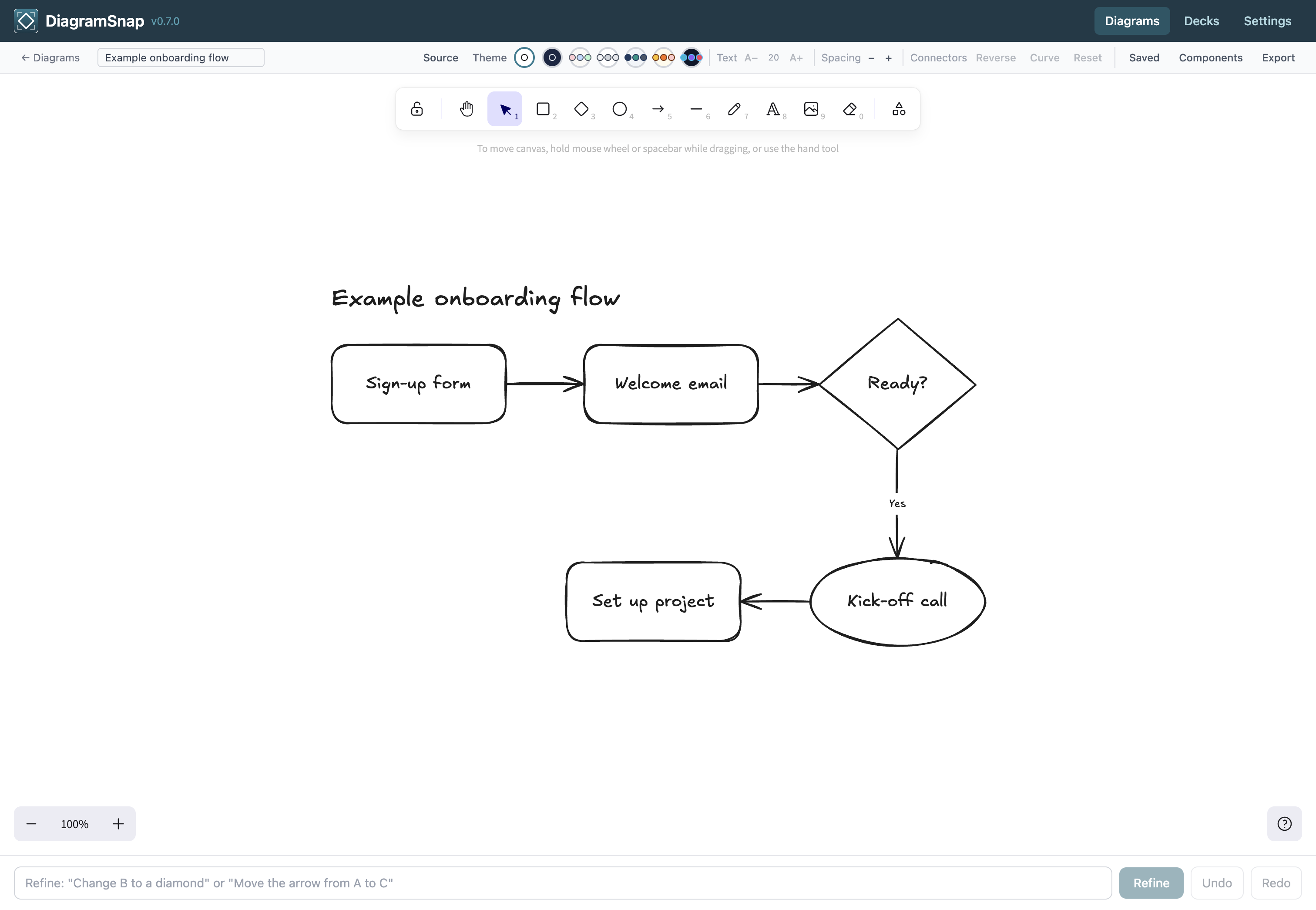
DiagramSnap — diagram canvas with a customer onboarding flowchart
At a glance

From rough idea to finished deck

Explain workflows, systems, and client ideas through clear diagrams and slide decks while keeping the work on your Mac.

01

Draw and import diagrams

Build on an editable canvas, or bring in files and images to redraw.

02

Turn them into decks

Build slides from your diagrams or notes, with themes and speaker notes.

03

Present and share

Present in windowed or full-screen mode, then export a clean PDF.

See it in action

From rough idea to presented deck

Real screens from the app. Select any screenshot to enlarge it.
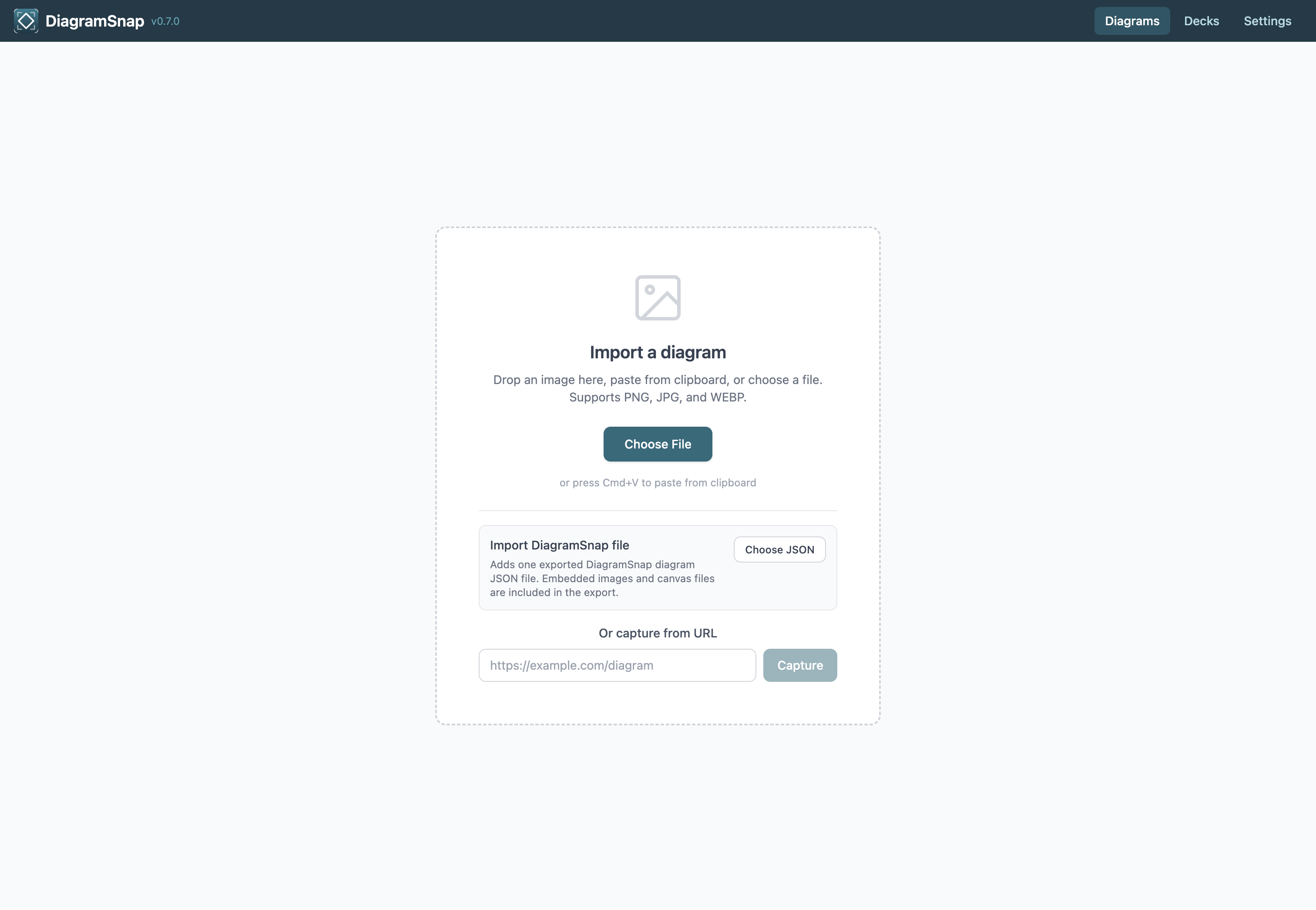
Import panel with drag-and-drop, file picker, and URL capture
Import
Step 01

Bring your ideas in

Import diagrams from images, files, clipboard, or a URL, or start from a blank canvas.
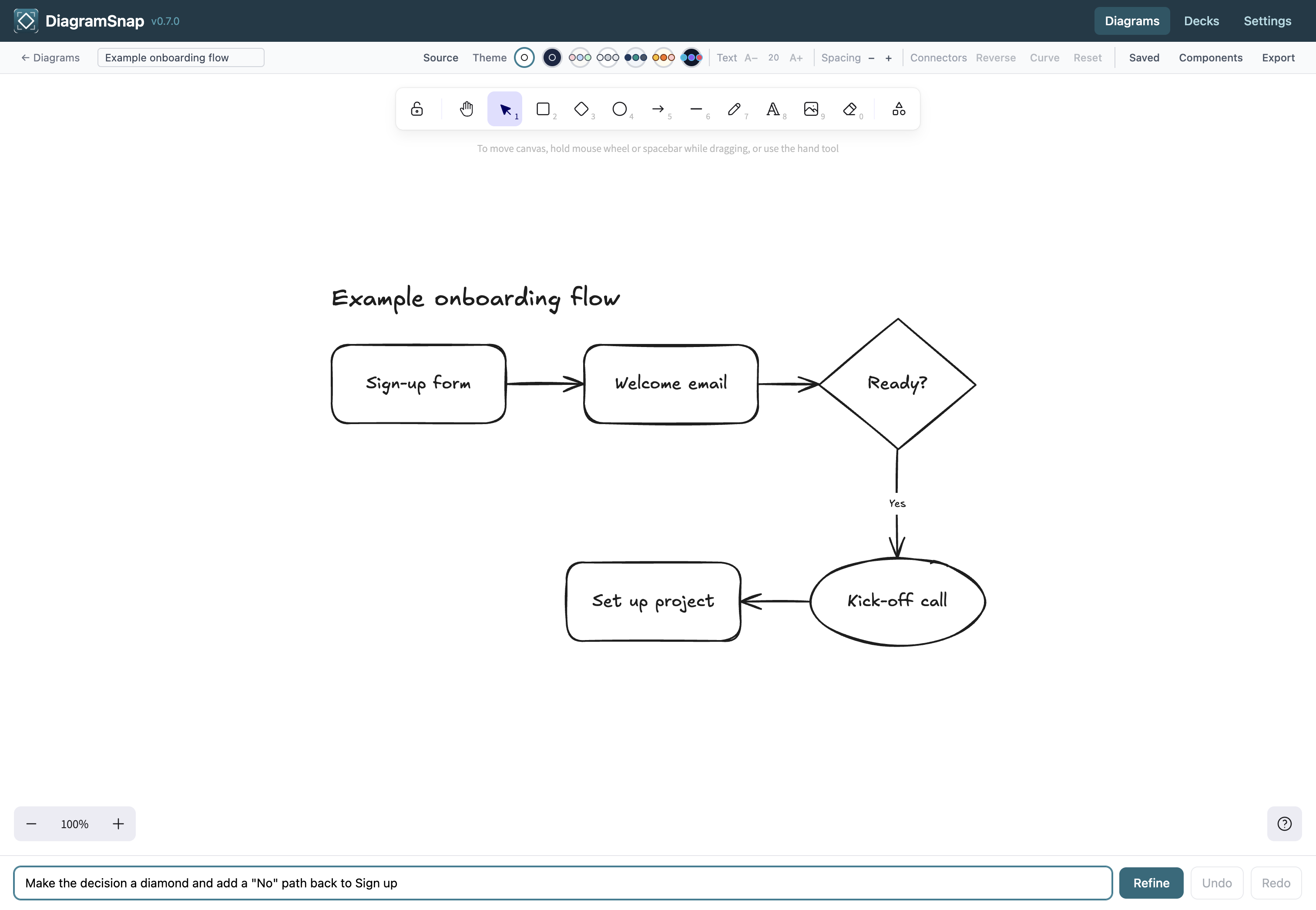
Diagram editor with style panel showing stroke, font, and alignment controls
Diagram editor
Step 02

Refine the diagram

Refine shapes, colours, fonts, stroke styles, and text alignment.
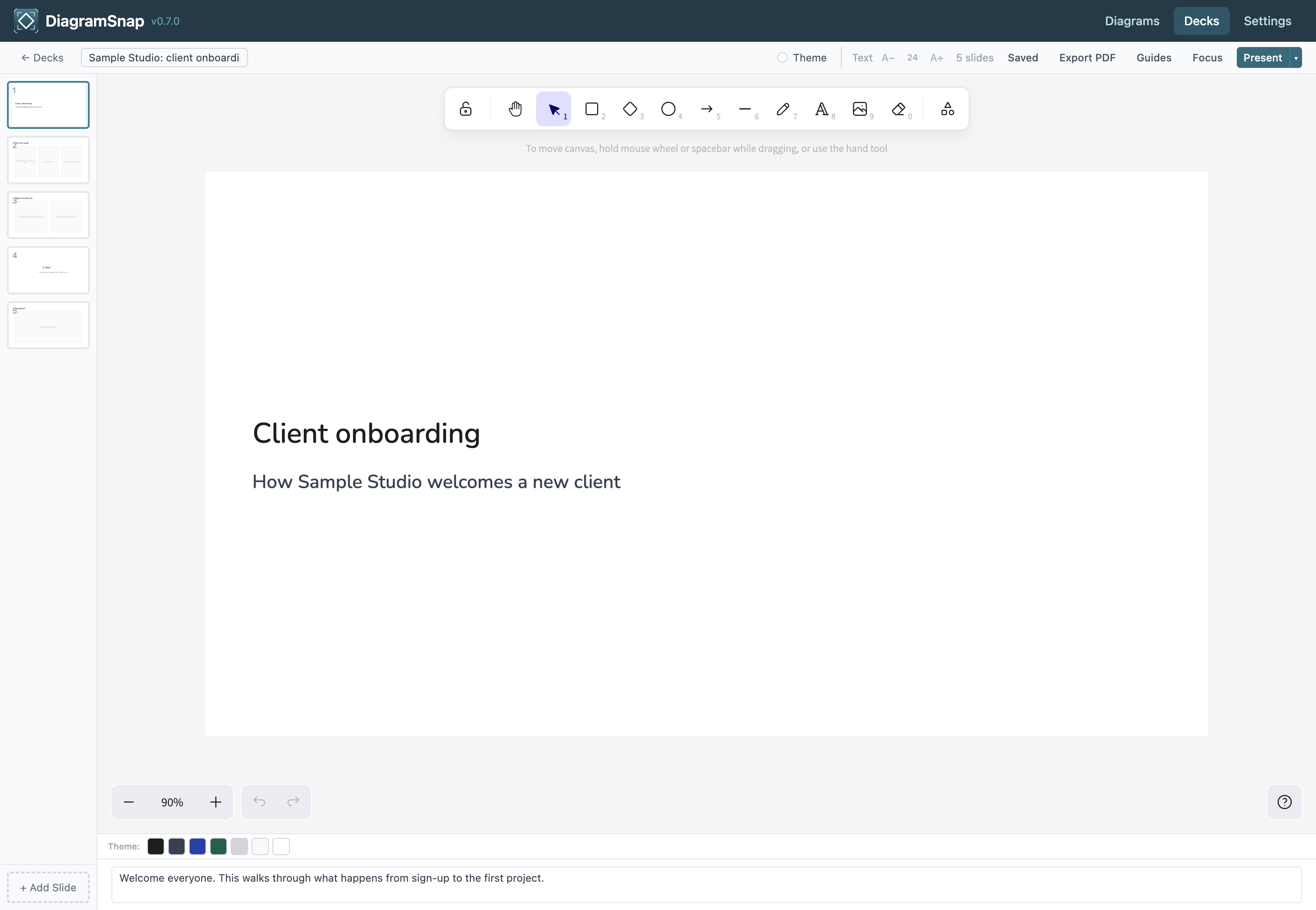
Deck editor with slide thumbnails, theme picker, and speaker notes
Deck editor
Step 03

Build the deck

Build slide decks with themes, speaker notes, and per-slide editing.
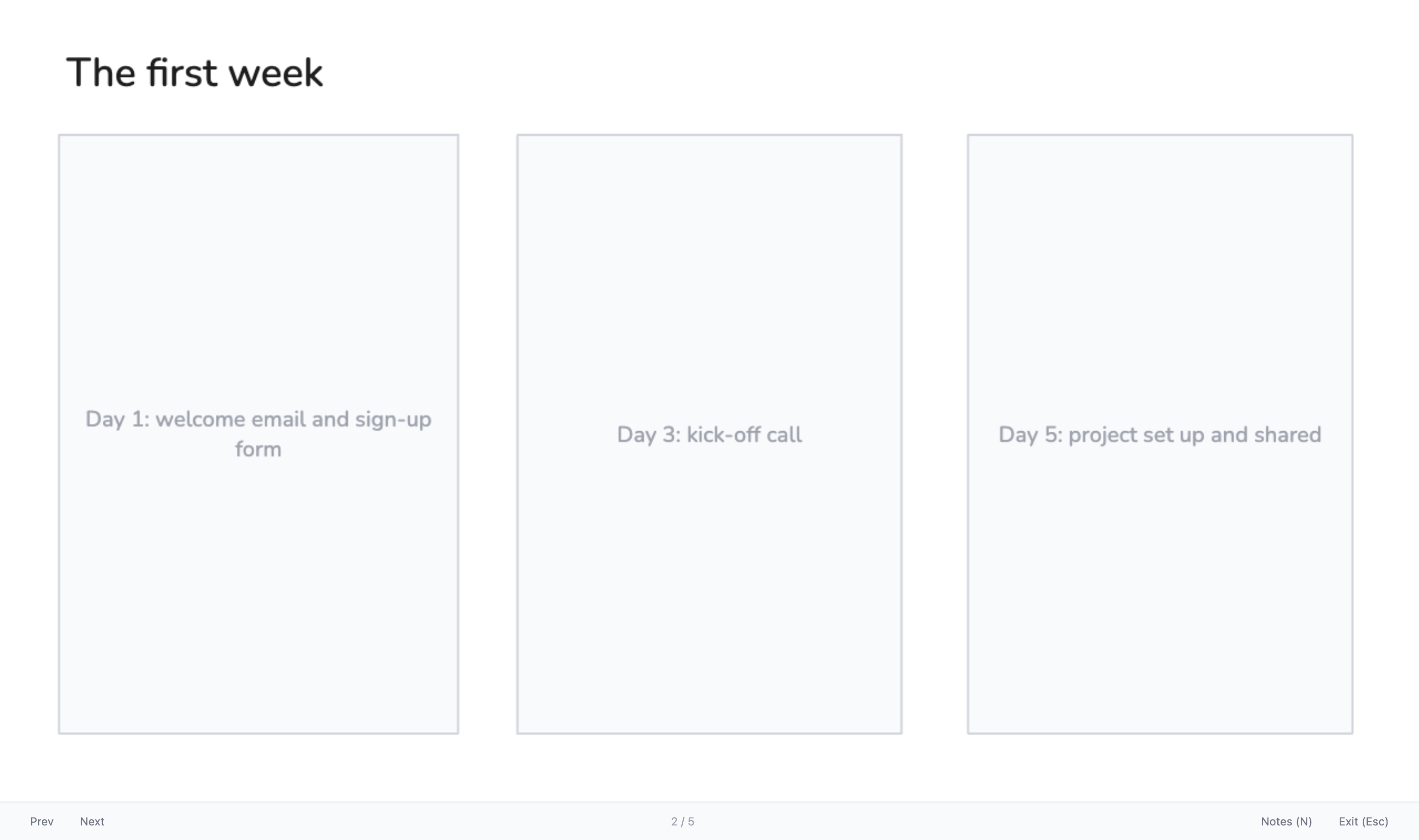
Presenter mode showing a slide with floating speaker notes window
Presenter mode
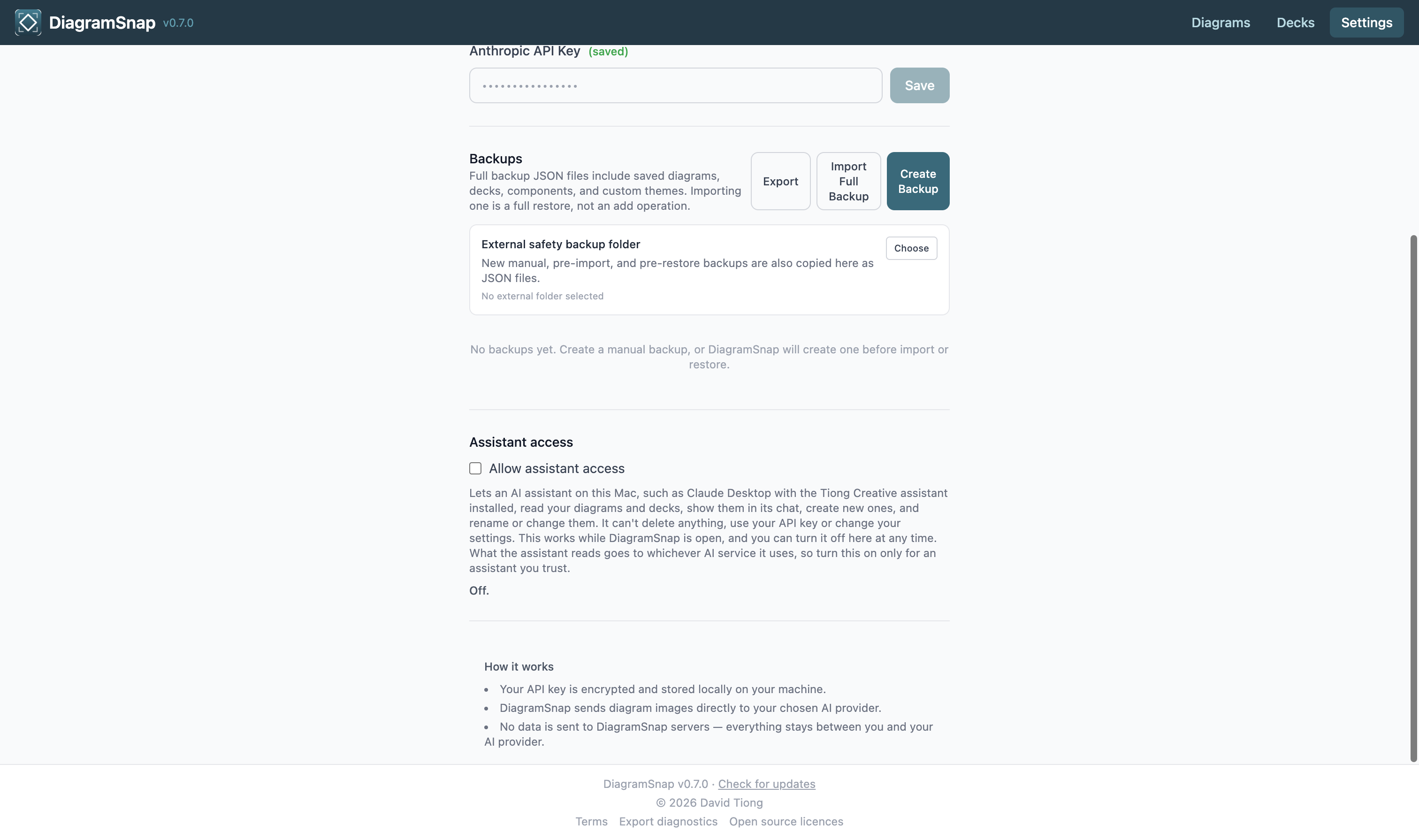
Settings page showing AI provider configuration and backup management
Settings and backups
Buy Now — $29 USD

14-day money-back guarantee · Future updates included

When you want the specifics

All the useful detail, easy to find.

The complete feature list, who the app suits, setup steps and answers to common questions. Open any heading for the full answer.

Everything included
  • macOS desktop app (Intel + Apple Silicon)
  • Diagram canvas with shapes, arrows, text, colours, and fonts
  • Deck builder with autosave, slide themes, variants, and speaker notes
  • Windowed and full-screen presenter modes
  • Compressed PDF export for slide decks
  • Import from images (with AI) and saved DiagramSnap diagram files
  • Individual diagram and deck export/import for transfer
  • Full backup export and destructive restore for moving all app data
  • External backup folder support
  • Optional Claude or OpenAI features using your own API key
  • Free updates

How the main features work

Create and refine diagrams
Build diagrams on a canvas powered by Excalidraw, then refine shapes, text, arrows, fonts, colours, and layout directly in the app.
Import from files and images
Bring in a whiteboard photo, sketch, screenshot or web page, and AI redraws it as an editable diagram using your own key. Saved DiagramSnap files import without AI. Individual diagram imports add to your library without replacing existing work.
Generate slide decks
Paste in notes or a brief and AI suggests an outline, then builds editable slides with speaker notes. Or build slides yourself from templates and your diagrams. Either way you get theme variants, background images, and manual control over each slide.
Present and export
Use focused presenter modes for windowed or full-screen presenting, then export decks to clean PDFs when you need to share a finished version.
Custom branded themes
Create themes with colours, fonts, and background variants so light and dark slides can live in the same deck without losing manual edits.
Backups and portability
Export the full app dataset for restore, export individual diagrams or decks for safe transfer, and keep external backup copies in a folder you choose.
Works with your AI assistant
Assistant access in Settings is off until you turn it on. While it's on and DiagramSnap is open, an AI assistant on your Mac such as Claude Desktop can read your diagrams and decks, create new ones, add slides and rename or change them, and what it reads is sent to the AI service behind that assistant. It can't delete anything or use your AI key. The setup steps are in the help centre.
Who DiagramSnap is for
Consultants and facilitators
Sketch systems, decision flows, client journeys, and workshop outputs, then turn them into presentation-ready decks.
Product and operations teams
Capture processes, service flows, release plans, and internal explainers without sending drafts through another hosted platform.
People with branded decks
Build reusable custom themes with background images, font choices, and slide variants that match a client's visual system.

Why DiagramSnap instead of a cloud diagram tool?

Your data stays local
Diagrams, decks, themes, and backups are stored on your Mac. AI calls only happen when you choose to use your own provider key, and they go straight to that provider, not through a DiagramSnap server.
Decks and diagrams together
Move from rough visual thinking to a presented deck without recreating the same idea across separate apps.
One-time purchase
Pay once, use it forever. No subscription and no account just to keep working on your own diagrams.
How do I get started?
  1. Create or import a diagram — start with a blank canvas, import an image for AI to redraw, or add a saved DiagramSnap diagram from another machine.
  2. Build a deck — create slides from your diagram or pasted content, edit each slide, and add speaker notes for presenting.
  3. Apply a theme — use built-in or custom themes with background variants, then fine-tune slide text, colours, and layout where needed.
  4. Present or export — open windowed or full-screen presenter mode, or export a PDF for sharing.

First time installing one of these apps? The Installing an app guide walks through downloading it from your Gumroad Library and installing it on your Mac.

AI, API keys and where your work is stored

Do I need an AI API key?

Not to get started. You can draw diagrams, build and present decks, export, and back up without one. AI is what reads imported images, screenshots and web pages into diagrams, generates slides from your notes, and makes changes you describe, so those features need your own Claude or OpenAI API key. Because importing relies on it, DiagramSnap opens on Settings to help you add a key until one is saved.

Is my work stored in the cloud?

No. DiagramSnap stores diagrams, decks, themes, settings, and backups locally on your Mac. There is no DiagramSnap server account.

Moving, backing up and installing

Can I move diagrams or decks to another Mac?

Yes. Export an individual diagram or deck as a DiagramSnap JSON file, then import it on another machine. Those imports add new items and do not replace existing work.

Can I restore the whole app dataset?

Yes. Full backup import is intentionally a destructive restore for moving everything from another machine or recovering from a backup. DiagramSnap labels this clearly and saves a pre-restore backup first.

Is the app safe to install?

Yes. DiagramSnap is code-signed with an Apple Developer ID and notarized by Apple, for both Intel and Apple Silicon Macs.

Buying, updates and refunds

Can I try the app and get a refund?

Yes. Individual app purchases include a 14-day money-back guarantee. Install it, try it, and if it does not suit your needs, email david@tiongcreative.com.au with your order details within 14 days of purchase.

If your purchase is fully refunded and the licence ends, you must stop using the app and delete copies and installers held under that licence. Your own documents and exported work remain yours to keep.

Are updates included?

Yes. When you buy the app on its own there is no subscription, and future updates to it are included.

What's changed in the latest version?

If you buy the app, every future update to it is included at no extra cost. Members get updates while their membership is active. You can see release notes on the changelog page. To download updates, visit your Gumroad Library or use the download link in your original purchase receipt.

Where are the complete guides and FAQs?

Step-by-step guides, from importing a sketch to building, theming and presenting a deck, are in the DiagramSnap help pages. Release notes are on the changelog page. For anything else, email david@tiongcreative.com.au.

Choose your next step

Ready to look closer?

$29 USD one-time purchase · 14-day money-back guarantee · Future updates included

Built by David Tiong

I built DiagramSnap because I wanted a faster way to move from visual thinking to a usable deck without surrendering client material to another cloud workspace. It is local first, deliberately practical, and designed around real presentation workflows.